Enrollment & Batch Import
Register students into the EduTrack database using either bulk Excel/CSV spreadsheet importing or individual manual registration forms.
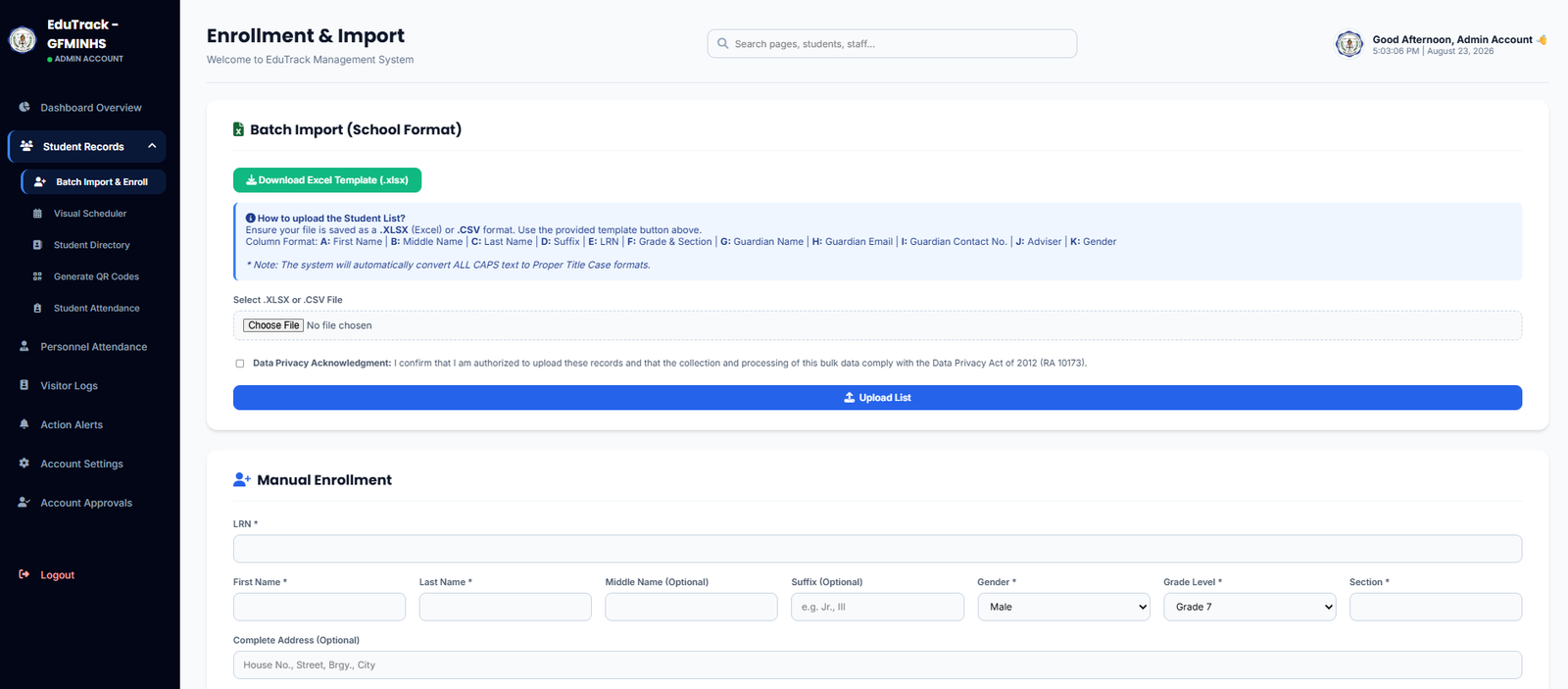
Figure 2.2: Batch Import (School Format) and Manual Student Enrollment Interface
📊 Method A: Batch Import (School Format)
Designed for bulk student onboarding at the start of the school year or new semester.
-
1
Download the Official Template
Click the green "📥 Download Excel Template (.xlsx)" button to get the pre-formatted spreadsheet.
-
2
Fill in Required Columns in Order
Populate the sheet ensuring data conforms to the following strict column layout:
| Col | Header Name | Description & Example |
|---|---|---|
A |
First Name | Given name (e.g., Juan) |
B |
Middle Name | Middle name (e.g., Protacio) |
C |
Last Name | Family name (e.g., Rizal) |
D |
Suffix | Name extensions (e.g., Jr., III, N/A) |
E |
LRN | 12-digit Learner Reference Number (e.g., 109312090001) |
F |
Grade & Section | Grade level and section name (e.g., 7 - Diamond) |
G |
Guardian Name | Full name of parent/guardian for notification linkage |
H |
Guardian Email | Valid email for attendance summary alerts |
I |
Guardian Contact No. | Active mobile number for gate scan SMS alerts |
J |
Adviser | Designated classroom adviser teacher name |
K |
Gender | Male or Female |
-
3
Select & Acknowledge Privacy Compliance
Click Choose File and select your completed
.XLSXor.CSVfile. Then, check the Data Privacy Acknowledgment box confirming compliance with RA 10173. -
4
Upload List
Click "Upload List" to process the batch. The system will auto-format capitalized text to proper Title Case and generate student IDs in the directory.
👤+ Method B: Manual Single-Student Enrollment
Ideal for late enrollees, transferee students, or single-record corrections.
-
1
Enter Unique LRN
Type the student's 12-digit Learner Reference Number. The system ensures no duplicate LRNs can be created.
-
2
Input Personal & Academic Info
Complete the required fields: First Name, Last Name, Gender, Grade Level, and assign their specific Section.
-
3
Submit Enrollment
Click the save/enroll button at the bottom to immediately create the student record and enable QR code generation for the student.
DELA CRUZ → Dela Cruz).