Student Directory
The complete student master roster organized by Grade Level. Search, edit biographical data, export individual attendance reports, or archive records.
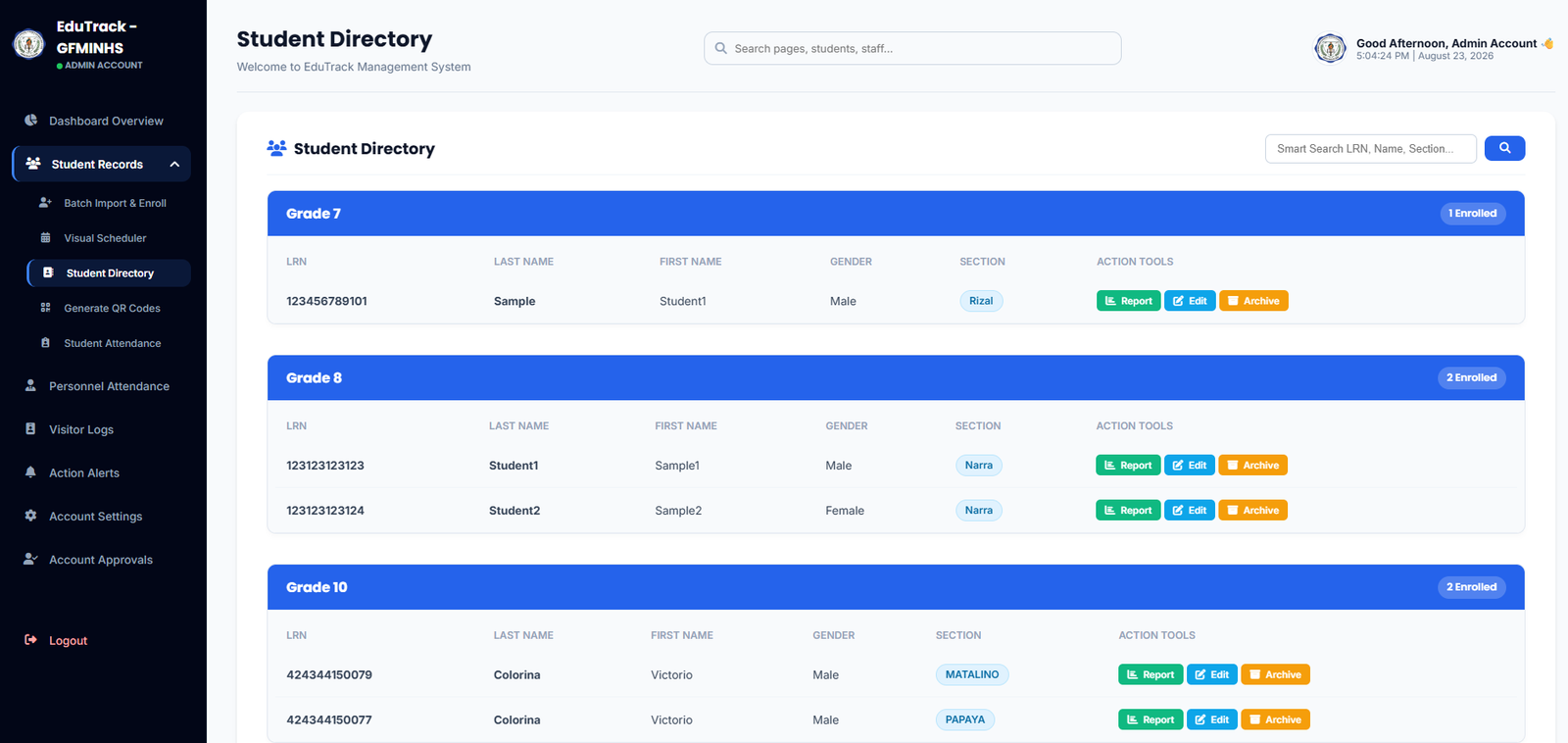
Figure 2.4: Student Directory grouped by Grade Level with Action Tools
Row Action Tools
Individual Attendance Report
Generates a dedicated attendance history card for the selected student. Shows scan timestamps, monthly percentage rates, tardiness history, and guardian contact details.
Edit Student Profile
Allows administrators to update personal details (Name, Suffix, Gender), correct LRN typos, modify guardian contact information, or reassign sections.
Archive Student Record
Removes the student from active class rosters (for transfers or dropouts) while preserving all historical attendance data safely in the audit database.
How to Use the Directory
-
1
Using Smart Search
Type an LRN, Student Name, or Section into the search bar at the top right and press Enter or click 🔍 to immediately filter across all grade levels.
-
2
Monitoring Grade Enrollment Counts
Each blue grade bar displays a real-time count badge (e.g., 1 Enrolled, 2 Enrolled) summarizing current active enrollment.
-
3
Updating a Section Transfer
Click "✏️ Edit" next to a student to modify their assigned section (e.g., from Matalino to Papaya). The visual scheduler and teacher rosters update instantly.
Rizal, Narra, Papaya) highlights all peers belonging to the exact same classroom cluster.