Gate Command: Personnel Verification
The dedicated entry terminal authentication interface for campus security personnel and gate duty officers to unlock high-speed QR barcode scanners and audit tools.
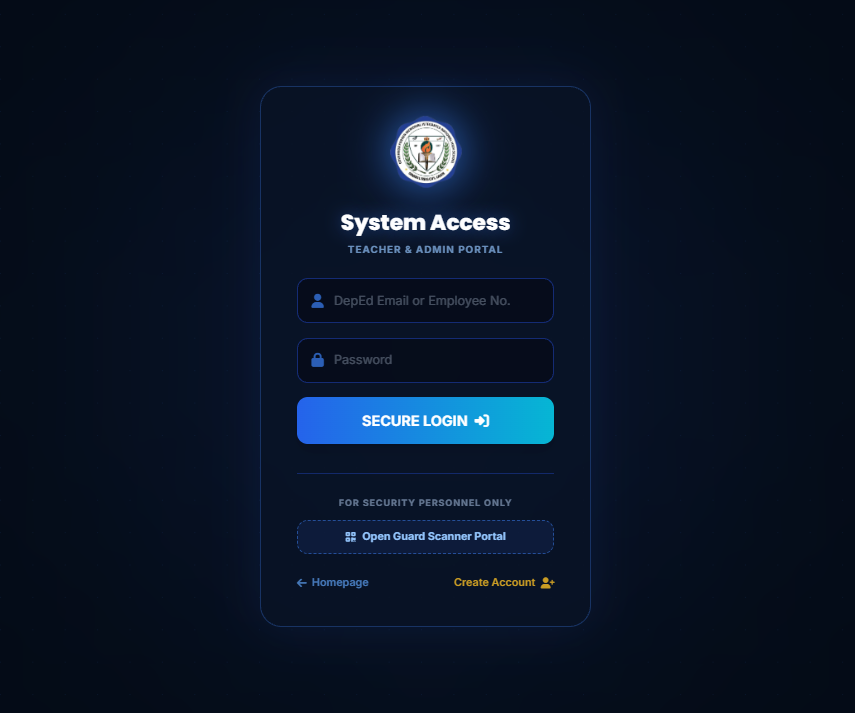
Step 1: Click "Open Guard Scanner Portal" on main login
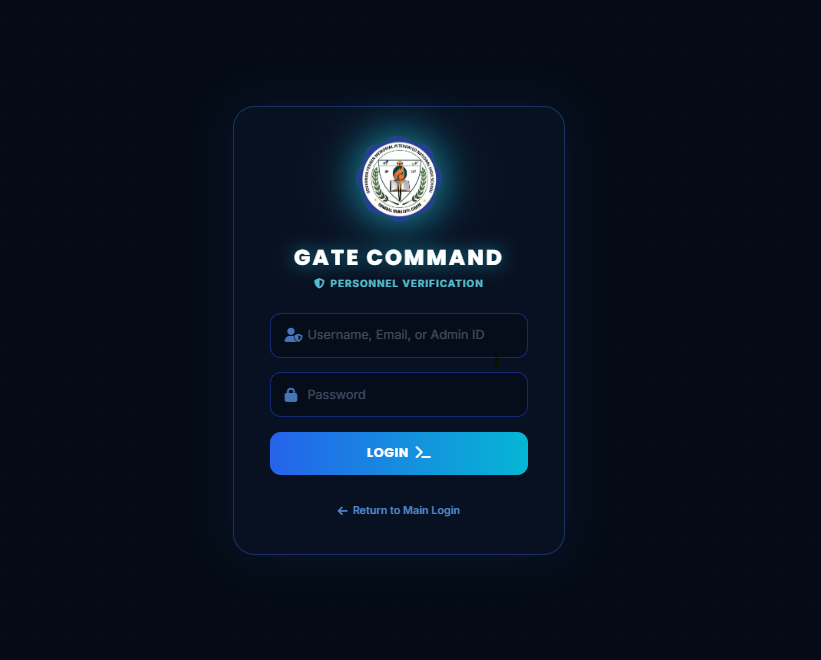
Step 2: Gate Command Personnel Verification Interface
Gate Command Features
🛡️ Dedicated Security Mode
Isolates the gate scanner station from administrative databases, preventing unauthorized modifications while optimizing high-speed QR camera scanning.
🔑 Flexible Credentials
Accepts assigned Guard Usernames (created by the administrator), registered Guard Emails, or master Admin IDs.
↩️ Quick Return Link
The "← Return to Main Login" link allows users to instantly navigate back to standard Teacher and Administrator portals.
How to Access the Gate Scanner Station
-
1
Launch Guard Portal
From the standard login screen, look under the "FOR SECURITY PERSONNEL ONLY" header and click the "Open Guard Scanner Portal" button.
-
2
Input Security Credentials
Type your assigned Guard Username / ID into the Username, Email, or Admin ID field and input your security password.
-
3
Click "LOGIN >_"
Upon verification, the system will initialize the gate terminal, launch your connected webcam/scanner camera, and prepare the live attendance feed.